1
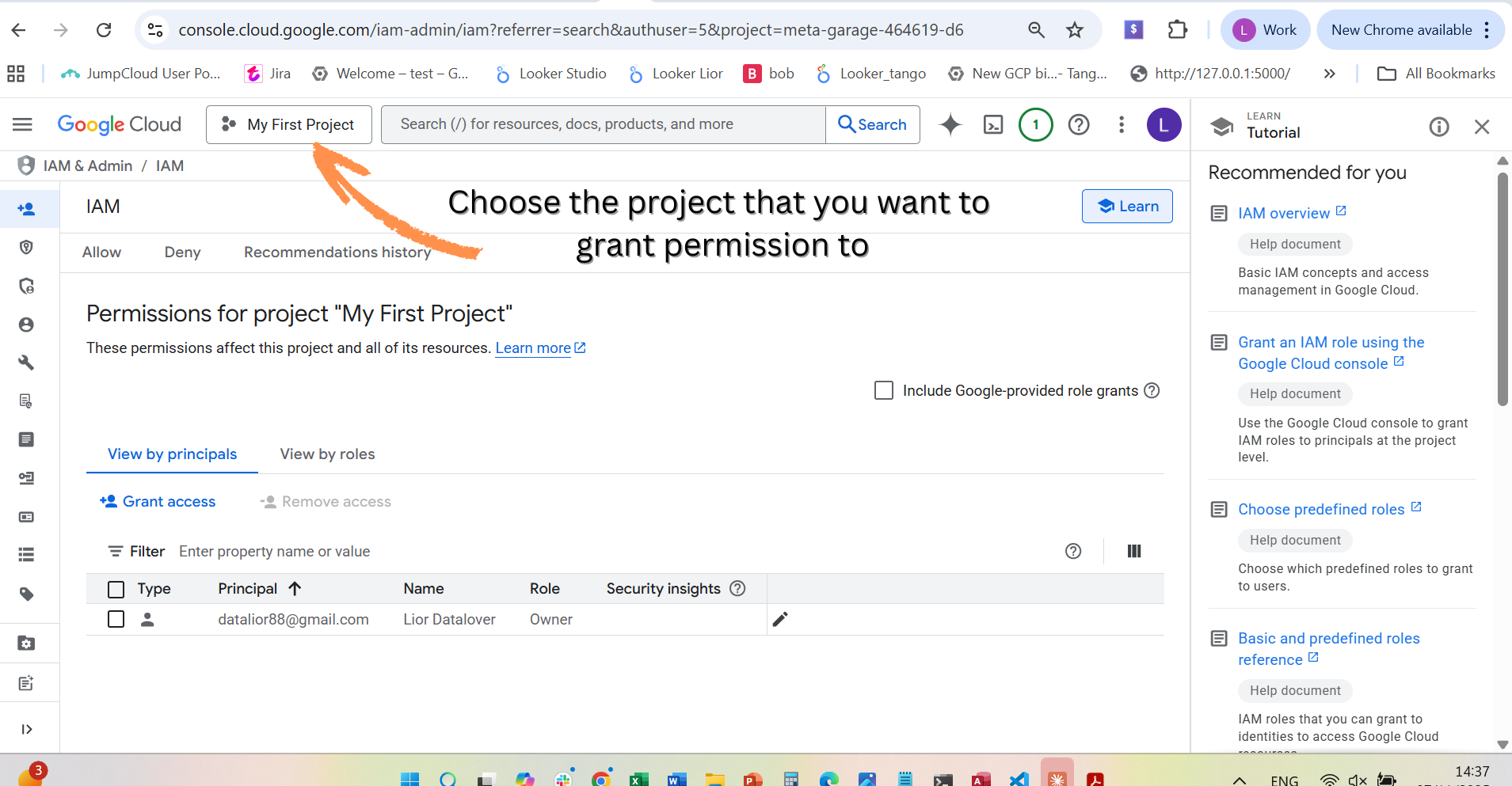
Choose Your Project
📌 Important
Select the project where you want to grant permissions from the project selector at the top.
2
Navigate to IAM & Admin
🔍 Navigation
Go to the search bar, type "IAM", and select "IAM & Admin" from the results.
3
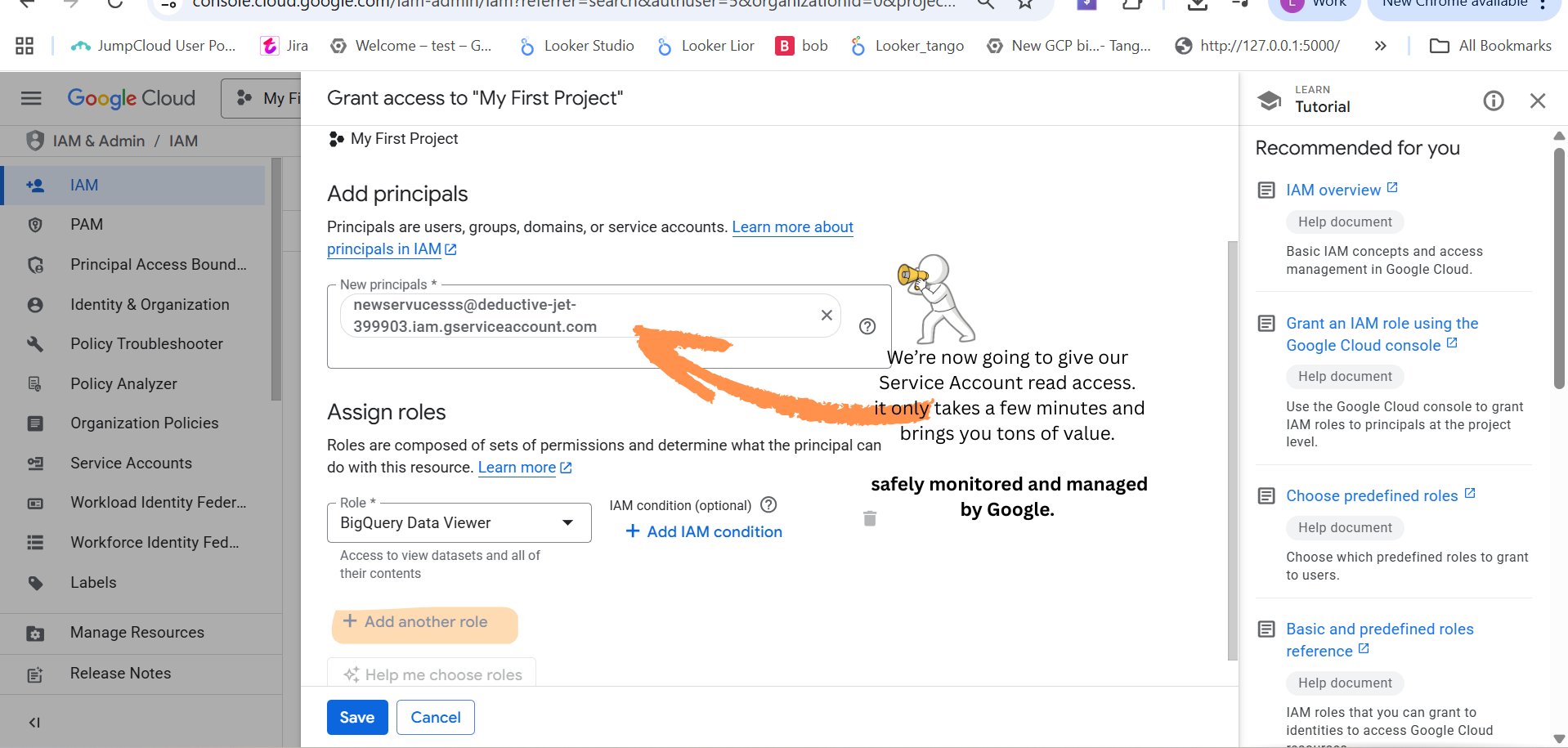
Grant Access
✅ Verify
Click the "Grant access" button and make sure you're in the correct project before proceeding.
4
Add Service Account
📧 SERVICE ACCOUNT EMAIL
newservucesss@deductive-jet-399903.iam.gserviceaccount.com
📝 Instructions
Paste the service account email above into the "New principals" field.
5
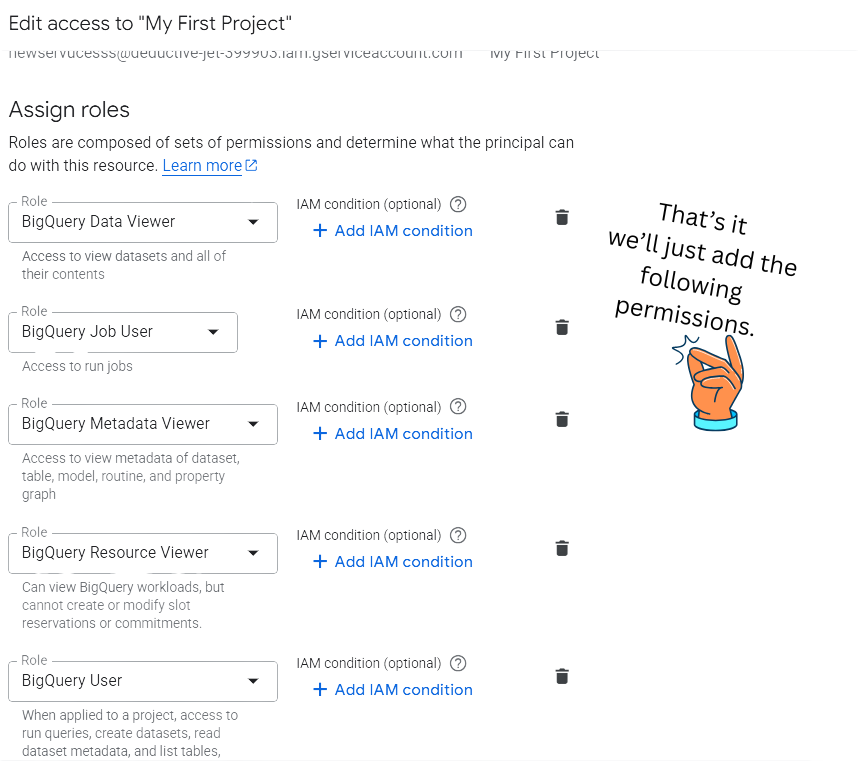
Assign BigQuery Roles
🎯 Required Roles
Add all five BigQuery roles as shown in the screenshot:
- BigQuery Data Viewer
- BigQuery Job User
- BigQuery Metadata Viewer
- BigQuery Resource Viewer
- BigQuery User
6
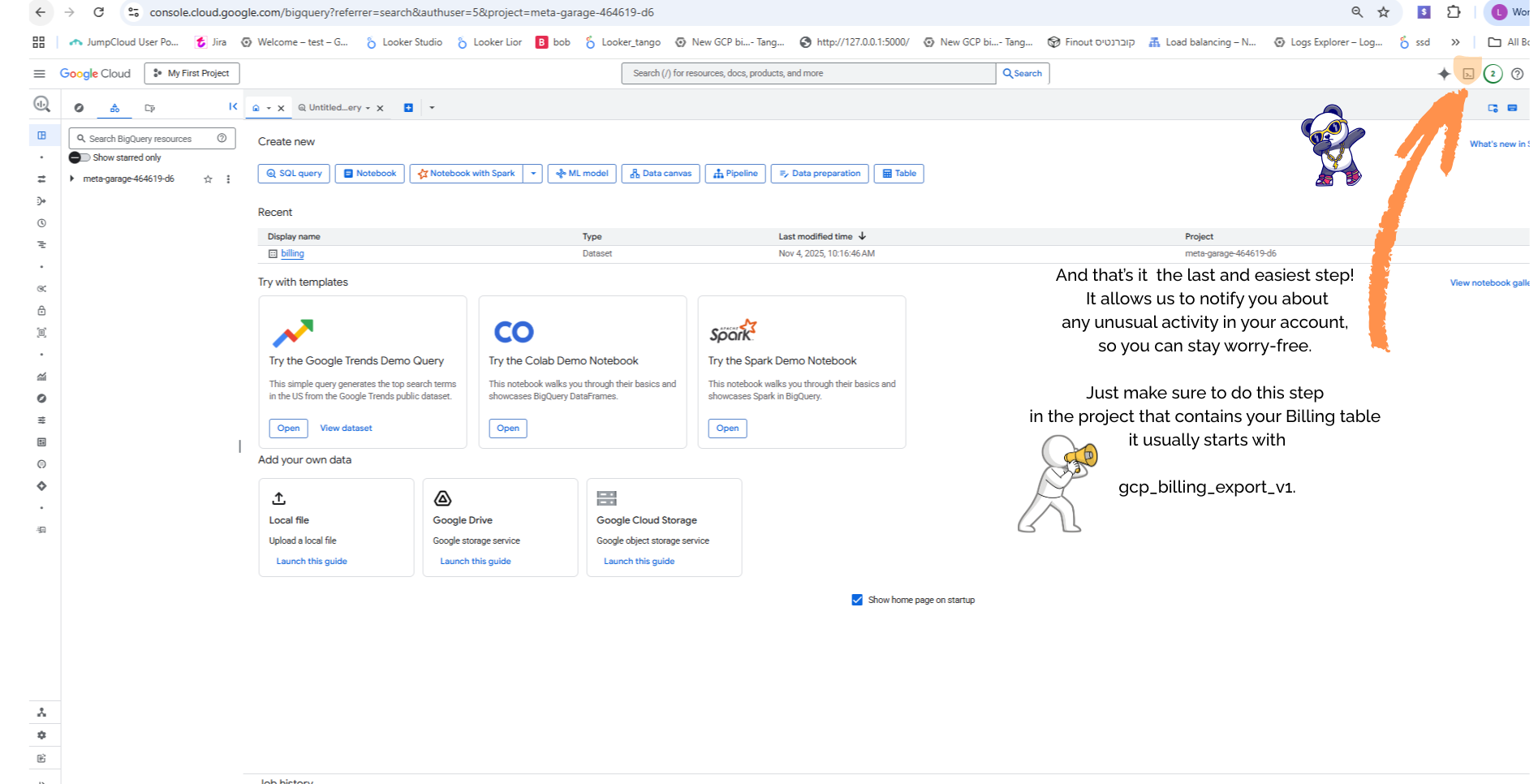
Setup Billing Alerts
💡 Final Step
Make sure to do this in the project that contains your Billing table. The billing table name usually starts with
gcp_billing_export_v1.7
Find Your Billing Account ID
💻 TERMINAL COMMAND
gcloud billing accounts list
⚡ Usage
Run this command in Cloud Shell or your local terminal (with gcloud CLI installed) to find your billing account ID.
8
Grant Billing Access
💻 TERMINAL COMMAND
gcloud billing accounts add-iam-policy-binding 0195DB-AD5633-1D35AC \
--member="serviceAccount:newservucesss@deductive-jet-399903.iam.gserviceaccount.com" \
--role="roles/billing.user"
⚠️ Important
Replace
0195DB-AD5633-1D35AC with your actual billing account ID from step 7. Your account number is shown as an example in the screenshot annotation.